Production Analytics Automation at USI
This automation has saved me a few workdays per month, freeing me to help others on the team. Most importantly, I learned that any repeated analysis can be automated, and I’m comfortable with the tools needed to do so.
At USI, one of my main responsibilities is developing the monthly Production Analytics report. This report contains various metrics related to insurance policy sales. When I first took over, the process involved downloading four reports from the company intranet and splitting them into six different Excel sheets referenced by the main report. I would filter and sort these intermediate reports, then use VLOOKUP formulas on the final report to pull in a few columns from each. I followed this process for months because... it worked.
As I grew comfortable, I decided to automate these steps.
I had previously used PowerQuery for reports requiring complicated transformations like unpivoting columns (see my 'Sales Team Customer Engagement Analytics' project for more). Taking a Udemy PowerBI course revealed just how versatile PowerQuery really is. In the course, data transformation was a prerequisite for many dashboards, and PowerQuery is the perfect tool for that. This combination of training and experience gave me the confidence to automate virtually anything with PowerQuery.
Once I realized automating the Production Analytics report was feasible, I went for it. I knew every Excel transformation could be done in PowerQuery, and that learning the tool would translate well to Python, SQL, R, or other tools. PowerQuery was accessible in my current role, so it was my tool of choice.
Most transformations were straightforward—conditional columns (e.g., if revenue ≥ x then “High Revenue” else “Low Revenue”) or simple filters (e.g., keeping only active plans). These saved time but weren’t the most impactful part. The real game-changer was merging queries, which replaced inefficient manual VLOOKUPs.
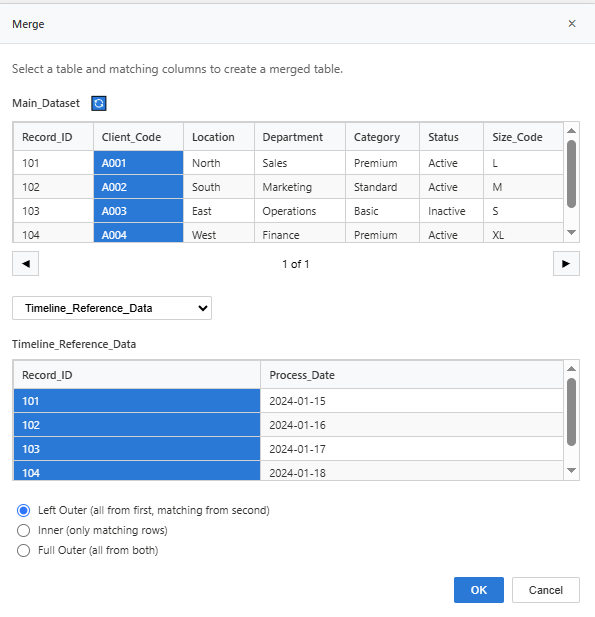
Exhibit 1: PowerQuery Merge Dialogue Box
Merging queries is very similar to SQL JOINs—PowerQuery even lets you select join types and matching columns just like SQL. Learning this cemented my understanding of data merging concepts across tools.
My monthly process went from manually slicing and combining seven spreadsheets to simply downloading reports and updating the file path in PowerQuery. The organized queries look much cleaner than my old dual-monitor chaos juggling multiple spreadsheets. This automation saved me several workdays per month, letting me focus on other priorities.
Most importantly, I learned that any repeated analysis can be automated—and I’m confident in the skills to do so.
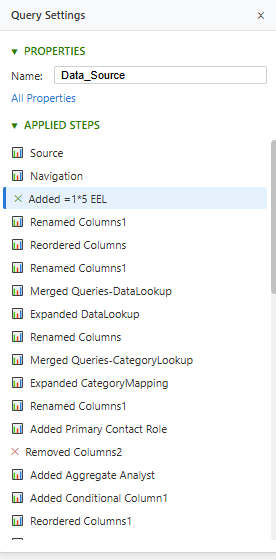
Exhibit 2: List of Applied Steps in PowerQuery Automated Every Month